


CPU-based autoscaling works well when CPU is the signal that best represents demand. Queue consumers are different. A worker can be almost idle while thousands of messages wait in Amazon SQS, or it can remain CPU-bound after the backlog has already disappeared.
For asynchronous workloads, the better question is: how much work is waiting, and how quickly must we process it?
Kubernetes Event-driven Autoscaling (KEDA) answers that question by connecting external event sources to Kubernetes autoscaling. In this guide, we will run an SQS consumer on Amazon EKS, let KEDA measure the queue backlog, and automatically adjust the number of worker Pods from zero to the capacity the queue requires.
We will build the following:
- An Amazon SQS queue with a dead-letter queue.
- An EKS Deployment that processes queue messages.
- EKS Pod Identity for temporary, least-privilege AWS credentials.
- A KEDA
ScaledObjectthat converts queue depth into desired replicas. - A load test that proves scale-out, backlog recovery, and scale-to-zero.
How the scaling loop works
The flow is deliberately simple:
- Producers send work to an SQS queue.
- KEDA polls the queue and calculates its effective backlog.
- KEDA exposes an external metric to the Kubernetes Horizontal Pod Autoscaler.
- The HPA changes the replica count of the worker Deployment.
- Worker Pods receive, process, and delete messages.
- As the backlog clears, the HPA scales the Deployment back down.
If queueLength is 10 and SQS contains 120 actionable messages, KEDA targets roughly 12 replicas, subject to the minimum, maximum, and HPA behavior you configure.
KEDA’s SQS scaler includes in-flight messages by default. That matters because a received message remains unfinished until the worker deletes it. The effective backlog is therefore approximately:
visible messages + in-flight messages
Delayed messages are excluded unless scaleOnDelayed is enabled.
Prerequisites
You need an existing EKS cluster and these tools:
aws --version
kubectl version --client
helm version
eksctl version
Set the environment used throughout the guide:
export AWS_REGION=eu-west-1
export CLUSTER_NAME=event-workers
export APP_NAMESPACE=orders
export QUEUE_NAME=orders-processing
export DLQ_NAME=orders-processing-dlq
export KEDA_ROLE_NAME=event-workers-keda-sqs

export AWS_ACCOUNT_ID=$(aws sts get-caller-identity \
  --query Account \
  --output text)
Confirm that kubectl targets the intended cluster before changing anything:
aws eks update-kubeconfig \
  --region "$AWS_REGION" \
  --name "$CLUSTER_NAME"

kubectl cluster-info
kubectl get nodes
1. Create the SQS queue and dead-letter queue
Create the dead-letter queue first:
export DLQ_URL=$(aws sqs create-queue \
  --queue-name "$DLQ_NAME" \
  --region "$AWS_REGION" \
  --attributes MessageRetentionPeriod=1209600 \
  --query QueueUrl \
  --output text)

export DLQ_ARN=$(aws sqs get-queue-attributes \
  --queue-url "$DLQ_URL" \
  --attribute-names QueueArn \
  --query 'Attributes.QueueArn' \
  --output text)
Create the source queue with a 120-second visibility timeout and send a message to the DLQ after five failed receives:
export REDRIVE_POLICY=$(printf \
  '{"deadLetterTargetArn":"%s","maxReceiveCount":"5"}' \
  "$DLQ_ARN")

export QUEUE_URL=$(aws sqs create-queue \
  --queue-name "$QUEUE_NAME" \
  --region "$AWS_REGION" \
  --attributes \
    VisibilityTimeout=120,ReceiveMessageWaitTimeSeconds=20,RedrivePolicy="$REDRIVE_POLICY" \
  --query QueueUrl \
  --output text)

export QUEUE_ARN=$(aws sqs get-queue-attributes \
  --queue-url "$QUEUE_URL" \
  --attribute-names QueueArn \
  --query 'Attributes.QueueArn' \
  --output text)
The visibility timeout must exceed the normal processing time of a message. If it expires too early, another worker can receive the same message while the first worker is still processing it. Workers must still be idempotent because SQS provides at-least-once delivery.
2. Give KEDA permission to inspect the queue
KEDA needs only three read operations for this scaler:
{
  "Version": "2012-10-17",
  "Statement": [
    {
      "Sid": "ReadOrdersQueueDepth",
      "Effect": "Allow",
      "Action": [
        "sqs:GetQueueAttributes",
        "sqs:GetQueueUrl",
        "sqs:ListQueueTags"
      ],
      "Resource": "QUEUE_ARN"
    }
  ]
}
Write that policy as keda-sqs-policy.json, replace QUEUE_ARN, and create it:
sed -i "s|QUEUE_ARN|$QUEUE_ARN|g" keda-sqs-policy.json

export KEDA_POLICY_ARN=$(aws iam create-policy \
  --policy-name event-workers-keda-sqs \
  --policy-document file://keda-sqs-policy.json \
  --query 'Policy.Arn' \
  --output text)
EKS Pod Identity avoids long-lived access keys. Install the Pod Identity Agent add-on if the cluster is not using EKS Auto Mode:
aws eks create-addon \
  --cluster-name "$CLUSTER_NAME" \
  --addon-name eks-pod-identity-agent \
  --region "$AWS_REGION" \
  --resolve-conflicts OVERWRITE
Create an IAM role whose trust policy allows EKS Pod Identity:
{
  "Version": "2012-10-17",
  "Statement": [
    {
      "Effect": "Allow",
      "Principal": {
        "Service": "pods.eks.amazonaws.com"
      },
      "Action": [
        "sts:AssumeRole",
        "sts:TagSession"
      ]
    }
  ]
}
aws iam create-role \
  --role-name "$KEDA_ROLE_NAME" \
  --assume-role-policy-document file://pod-identity-trust.json

aws iam attach-role-policy \
  --role-name "$KEDA_ROLE_NAME" \
  --policy-arn "$KEDA_POLICY_ARN"

export KEDA_ROLE_ARN="arn:aws:iam::${AWS_ACCOUNT_ID}:role/${KEDA_ROLE_NAME}"
3. Install KEDA with Helm
helm repo add kedacore https://kedacore.github.io/charts
helm repo update

helm upgrade --install keda kedacore/keda \
  --namespace keda \
  --create-namespace \
  --wait \
  --timeout 5m
Associate the IAM role with KEDA’s operator service account:
aws eks create-pod-identity-association \
  --cluster-name "$CLUSTER_NAME" \
  --namespace keda \
  --service-account keda-operator \
  --role-arn "$KEDA_ROLE_ARN" \
  --region "$AWS_REGION"

kubectl rollout restart deployment/keda-operator -n keda
kubectl rollout status deployment/keda-operator -n keda
Verify the installation:
kubectl get pods -n keda
kubectl get crd scaledobjects.keda.sh
4. Deploy the SQS worker
The worker image must use long polling, delete messages only after successful processing, and terminate gracefully. The example below assumes the image reads QUEUE_URL and AWS_REGION from the environment:
apiVersion: v1
kind: Namespace
metadata:
  name: orders
---
apiVersion: apps/v1
kind: Deployment
metadata:
  name: order-worker
  namespace: orders
spec:
  replicas: 0
  selector:
    matchLabels:
      app: order-worker
  template:
    metadata:
      labels:
        app: order-worker
    spec:
      terminationGracePeriodSeconds: 150
      containers:
        - name: worker
          image: ghcr.io/example/order-worker:1.4.2
          env:
            - name: AWS_REGION
              value: eu-west-1
            - name: QUEUE_URL
              value: https://sqs.eu-west-1.amazonaws.com/111122223333/orders-processing
          resources:
            requests:
              cpu: 100m
              memory: 128Mi
            limits:
              cpu: 500m
              memory: 512Mi
The worker itself also needs permission to receive and delete messages. Give its service account a separate Pod Identity role with only sqs:ReceiveMessage, sqs:DeleteMessage, sqs:ChangeMessageVisibility, sqs:GetQueueAttributes, and sqs:GetQueueUrl on this queue. Keeping the KEDA observer role separate from the consumer role limits the impact of either workload.
5. Create the KEDA authentication and ScaledObject
Create a TriggerAuthentication that tells KEDA to use AWS pod identity:
apiVersion: keda.sh/v1alpha1
kind: TriggerAuthentication
metadata:
  name: keda-aws-auth
  namespace: orders
spec:
  podIdentity:
    provider: aws
    identityOwner: keda
Now define the scaling behavior:
apiVersion: keda.sh/v1alpha1
kind: ScaledObject
metadata:
  name: order-worker-sqs
  namespace: orders
spec:
  scaleTargetRef:
    name: order-worker
  pollingInterval: 15
  cooldownPeriod: 120
  minReplicaCount: 0
  maxReplicaCount: 30
  idleReplicaCount: 0
  advanced:
    horizontalPodAutoscalerConfig:
      behavior:
        scaleUp:
          stabilizationWindowSeconds: 0
          policies:
            - type: Percent
              value: 100
              periodSeconds: 30
            - type: Pods
              value: 4
              periodSeconds: 30
          selectPolicy: Max
        scaleDown:
          stabilizationWindowSeconds: 120
          policies:
            - type: Percent
              value: 50
              periodSeconds: 60
  triggers:
    - type: aws-sqs-queue
      authenticationRef:
        name: keda-aws-auth
      metadata:
        queueURL: https://sqs.eu-west-1.amazonaws.com/111122223333/orders-processing
        awsRegion: eu-west-1
        queueLength: "10"
        activationQueueLength: "1"
        scaleOnInFlight: "true"
        scaleOnDelayed: "false"
Apply the resources and inspect their condition:
kubectl apply -f worker.yaml
kubectl apply -f keda-auth.yaml
kubectl apply -f scaledobject.yaml

kubectl get scaledobject -n orders
kubectl describe scaledobject order-worker-sqs -n orders
kubectl get hpa -n orders
KEDA creates and owns an HPA for the Deployment. Do not create a second HPA that targets the same Deployment, or the two controllers will compete.
6. Generate a queue backlog
Send 200 messages:
for i in $(seq 1 200); do
  aws sqs send-message \
    --queue-url "$QUEUE_URL" \
    --message-body "{\"orderId\":\"load-test-${i}\"}" \
    --region "$AWS_REGION" >/dev/null
done
Watch the queue attributes in one terminal:
watch -n 2 "aws sqs get-queue-attributes \
  --queue-url '$QUEUE_URL' \
  --attribute-names \
    ApproximateNumberOfMessages \
    ApproximateNumberOfMessagesNotVisible \
  --query Attributes"
Watch Kubernetes in another:
kubectl get pods,hpa,scaledobject \
  -n orders \
  --watch

KEDA and HPA scale the order-worker Deployment as the SQS backlog grows.
With a target of ten messages per replica, a backlog of roughly 120 visible and in-flight messages should drive the Deployment toward approximately 12 Pods. The exact value can change while consumers receive and delete messages.
7. Inspect the backlog in the SQS console
Open Amazon SQS, select orders-processing, and choose Monitoring. The most useful charts are:
- Approximate number of messages visible.
- Approximate number of messages not visible.
- Approximate age of oldest message.
- Number of messages sent, received, and deleted.
- Number of empty receives.

The SQS monitoring view shows the backlog rising, moving into flight, and then returning to zero.
Queue depth tells you how much work exists; the age of the oldest message tells you whether users are waiting too long. For production alerting, backlog age is often the more meaningful service-level signal.
8. Verify the scale-out in the EKS console
In the Amazon EKS console, open the cluster, choose Resources, then Workloads → Pods, and filter the namespace to orders.
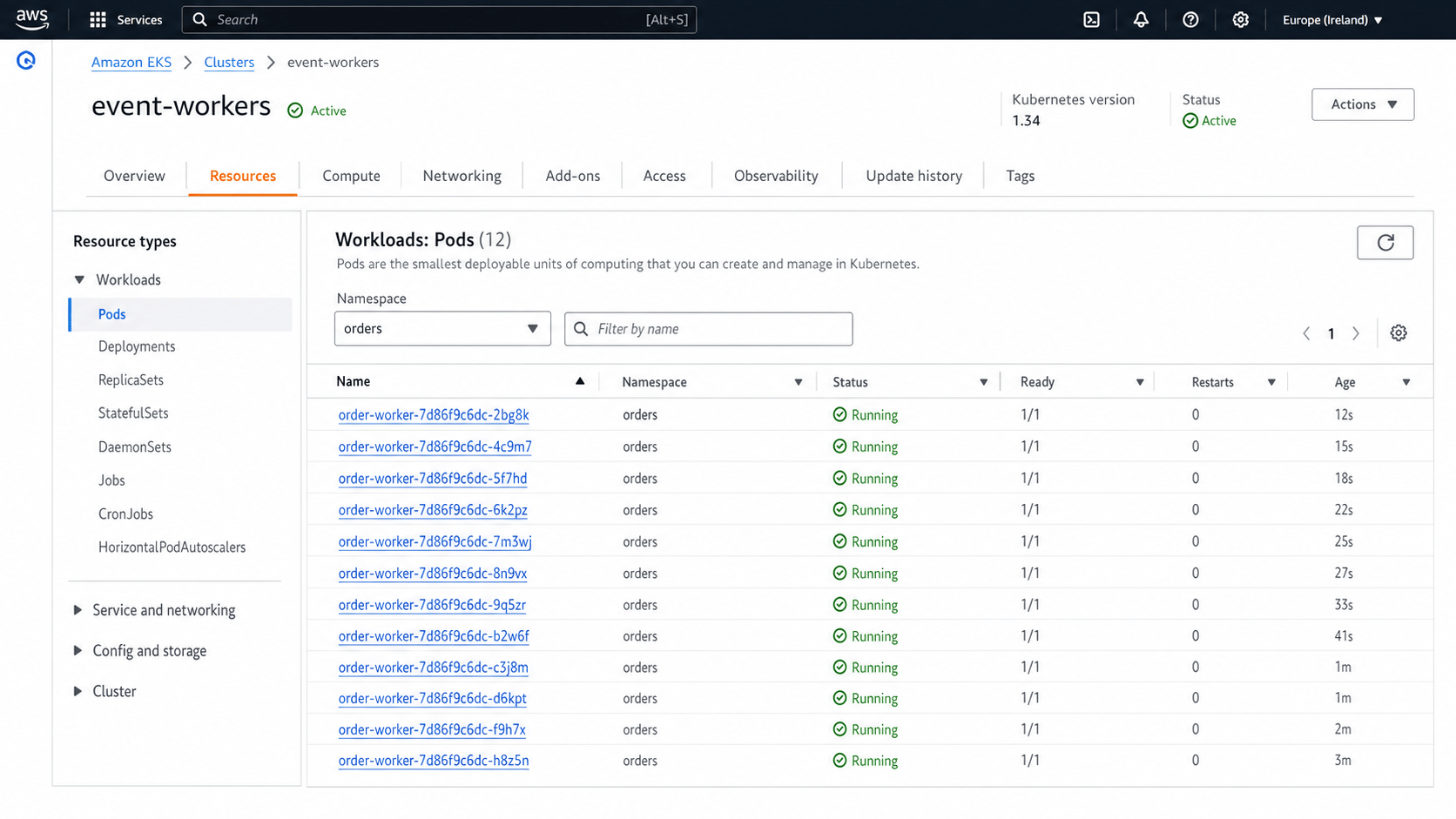
The EKS Resources view shows the worker replicas created for the queue spike.
Every Pod should reach Running. Pending Pods usually mean the cluster has insufficient node capacity, an unsatisfied scheduling constraint, or an image-pull problem. KEDA scales Pods; it does not create EC2 capacity. Pair it with Karpenter, Cluster Autoscaler, or EKS Auto Mode when queue spikes can exceed the current nodes.
9. Confirm scale-to-zero
After the workers delete the backlog, KEDA waits for the cooldown and HPA stabilization windows before reducing replicas:
kubectl get deployment order-worker -n orders --watch
The final state should be:
NAME           READY   UP-TO-DATE   AVAILABLE   AGE
order-worker   0/0     0            0           18m
Scale-to-zero is appropriate only when startup latency is acceptable. If the first message must be processed immediately, keep minReplicaCount: 1 or use a low-latency activation strategy.
Tuning the scaler for production
Choose queueLength from throughput
Do not guess the target. If one Pod processes two messages per second and the goal is to clear bursts within 60 seconds, one Pod can handle roughly 120 messages during that window. Add headroom for uneven message cost, downstream throttling, and startup time.
Include in-flight messages deliberately
scaleOnInFlight: true prevents KEDA from scaling down simply because workers have received the backlog. Turn it off only if in-flight work should not influence capacity.
Protect downstream systems
maxReplicaCount is a safety boundary. Set it from the capacity of databases, APIs, and other dependencies—not from the maximum number of Pods the cluster can schedule.
Align shutdown with visibility timeout
During termination, stop receiving new messages, finish or release current work, and allow enough terminationGracePeriodSeconds. If a process is killed while holding a message, the message becomes visible again only after its visibility timeout.
Treat the DLQ as a production queue
Alarm whenever the DLQ contains messages. Preserve the original payload and failure context, provide a controlled redrive process, and prevent poison messages from cycling forever.
Monitor the entire scaling chain
Track:
- SQS visible and in-flight messages.
- Age of the oldest message.
- Desired and current HPA replicas.
- KEDA scaler errors and reconciliation latency.
- Pending Pods and node provisioning time.
- Worker processing duration, failures, and retries.
Common failure modes
The ScaledObject is not ready: inspect kubectl describe scaledobject and the KEDA operator logs. Incorrect queue URLs, regions, and IAM permissions are common causes.
kubectl logs -n keda \
  deployment/keda-operator \
  --since=10m
The HPA shows an unknown external metric: confirm that keda-metrics-apiserver is healthy and that the APIService is available.
kubectl get apiservice v1beta1.external.metrics.k8s.io
kubectl get pods -n keda
Pods scale but the backlog does not fall: measure real message processing time, downstream throttling, delete failures, and poison messages. More replicas cannot fix a shared bottleneck.
Pods remain Pending: add node autoscaling or adjust requests, topology constraints, affinities, and taints.
Workers process duplicates: make handlers idempotent and review the visibility timeout. Duplicate delivery is an expected condition, not an exceptional one.
Cleanup
kubectl delete -f scaledobject.yaml
kubectl delete -f keda-auth.yaml
kubectl delete -f worker.yaml

helm uninstall keda -n keda

aws sqs delete-queue --queue-url "$QUEUE_URL"
aws sqs delete-queue --queue-url "$DLQ_URL"
Delete the Pod Identity association, IAM role, and IAM policy after confirming that no other workload uses them.
Final thoughts
KEDA makes the queue—not incidental CPU usage—the source of truth for worker capacity. On Amazon EKS, that produces a clear control loop: SQS exposes pending work, KEDA translates that backlog into an external metric, HPA changes the Pod count, and the workers drain the queue.
The manifest is the easy part. A trustworthy production design also needs scoped AWS identities, idempotent handlers, a deliberate visibility timeout, downstream capacity limits, a monitored DLQ, and enough node elasticity to place the Pods KEDA requests.
Start with a load test that includes both a burst and a poison message. Measure the oldest-message age, time to first scale-out, time to drain the backlog, and time to scale back down. Those four measurements will tell you far more about the system than a screenshot of a replica count.


Leave a Comment
Your email address will not be published. Required fields are marked with *